

















PDF Studio
What is PDF Studio?
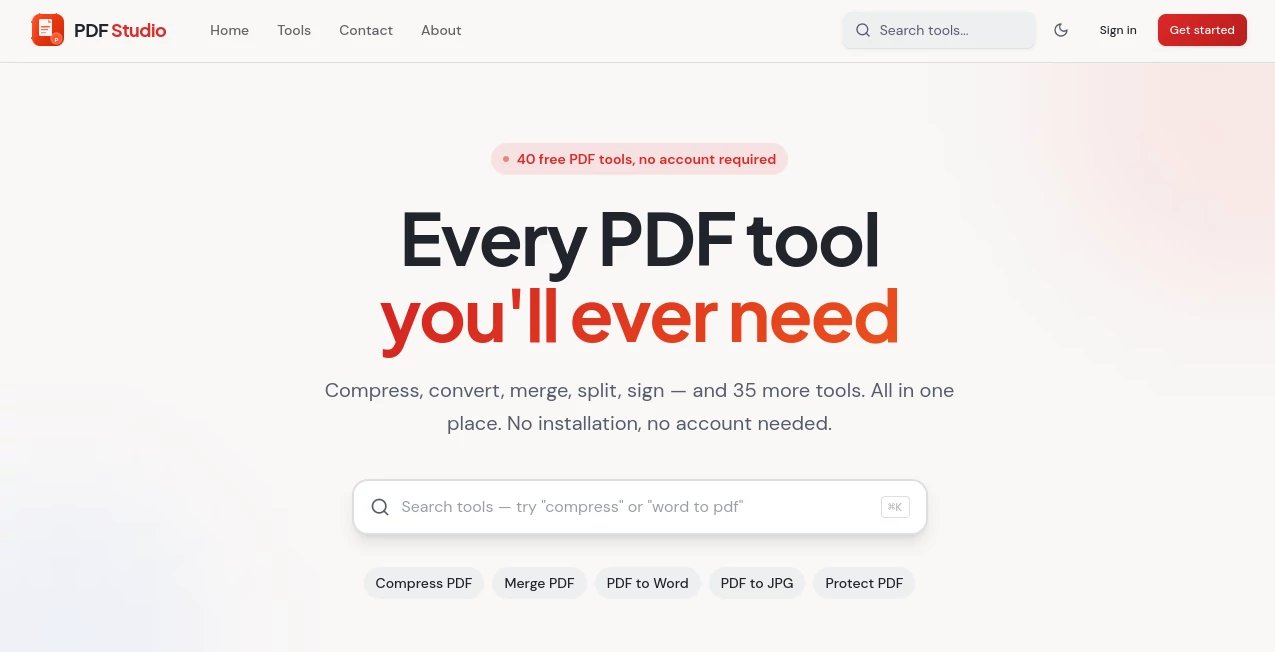
PDF work does not always need to be complicated. When the task is to merge documents, split pages, reduce a large file, convert a document, or make a few quick changes, a straightforward browser-based toolkit can save a surprising amount of time. PDFs Studio brings a collection of everyday PDF utilities together in one place, making common document tasks accessible without the need for a heavy desktop application.
The service is particularly useful for people who regularly handle reports, invoices, applications, forms, presentations, scanned documents, or other digital paperwork. Instead of searching for a different utility every time a PDF needs attention, users can work through a single online workspace and get back to the task at hand.
Key Features
- Online PDF tools for common document management tasks.
- PDF merging for combining multiple files into one document.
- PDF splitting and page organization for separating or rearranging content.
- PDF compression for reducing file size when documents are too large to share.
- Conversion tools for working between PDFs and image-based formats.
- Page rotation and organization for fixing scanned or incorrectly oriented documents.
- Watermark and page-number options for preparing more polished documents.
- Signature functionality for adding a signature to documents.
- A LinkedIn carousel creation option for turning PDF content into shareable social content.
User Interface
The interface is designed around the idea of choosing a PDF task first and then working directly with the document. That approach feels practical because users do not have to learn a complicated document-editing environment just to perform a simple operation.
For someone who only needs to merge a few files or compress a report before sending it by email, this simplicity can be more valuable than a long list of advanced editing controls. The workflow is also suitable for people who do not regularly work with professional PDF software.
Accuracy & Performance
Performance matters with PDF utilities because even a simple document task can become frustrating when processing takes too long. The toolkit is built for quick browser-based operations, allowing users to handle routine PDF work without installing a dedicated application.
For everyday jobs such as combining documents, rearranging pages, rotating pages, adding page numbers, or preparing a smaller file for sharing, the workflow is focused on completing the job rather than adding unnecessary complexity. Compression is naturally the area where users should pay the most attention to the balance between file size and document quality.
Capabilities
The range of tools makes the platform more useful than a single-purpose PDF converter. A typical workflow might involve merging several documents, organizing their pages, adding a watermark, and then downloading the finished file. Another practical example is reducing the size of a large PDF before attaching it to an email or uploading it to a website.
The image conversion capabilities are also useful for people working with scanned pages, screenshots, photographs, or visual documents. Meanwhile, signing and watermarking can help prepare documents for business communication without requiring a full professional PDF editor.
Security & Privacy
Privacy is an important consideration whenever documents are processed online, especially when those files contain contracts, invoices, identification documents, or internal business information. The service is designed around browser-based PDF processing, with the advertised workflow keeping document processing on the user's device rather than requiring files to be uploaded for remote processing.
That approach can be especially appealing for users who prefer to keep sensitive documents under their own control. Even so, users handling highly confidential material should always review the current privacy information and understand how their browser and device handle locally processed files.
Use Cases
There are plenty of everyday situations where a compact PDF toolkit can be useful. A student might combine lecture notes and assignments into one file before submitting them. A freelancer could merge a proposal, portfolio, and supporting documents into a single client-ready PDF. A business user might add page numbers and a confidential watermark to a report before sending it to a customer.
It can also be handy when dealing with application documents. A CV, cover letter, certificates, and supporting pages can be organized into a single PDF, then compressed if an online application has a strict file-size limit.
For social media professionals, the LinkedIn carousel functionality adds another practical angle. PDF-based content can be prepared for a more visual presentation instead of being treated only as a traditional document.
Pros and Cons
- Pros: A broad selection of useful PDF utilities is available in one place.
- Pros: Browser-based access means there is no need to install traditional desktop PDF software.
- Pros: The tools cover common tasks such as merging, splitting, compressing, converting, signing, watermarking, and page management.
- Pros: The simple workflow is approachable for occasional PDF users.
- Cons: Users looking for a full professional document-authoring suite may still need more advanced software.
- Cons: Large or unusually complex documents can naturally require more browser resources than small files.
Pricing Plans
The service is presented as a free collection of online PDF tools, making it attractive for users who do not want to commit to a paid PDF application for occasional document work. This is particularly useful for students, freelancers, small businesses, and anyone who only needs PDF utilities from time to time.
For users comparing PDF services, the absence of a complicated purchasing decision is a clear advantage. You can simply use the relevant utility when a document task appears instead of maintaining another paid application solely for occasional PDF editing.
How to Use PDFs Studio
Start by selecting the PDF operation that matches the task you need to complete. Depending on the job, this could be merging files, splitting pages, compressing a document, converting content, rotating pages, adding a watermark, numbering pages, or signing a PDF.
Upload or open the required document through the selected tool, make the necessary changes, review the result, and save the finished file. For a straightforward job such as combining two PDFs, the process can take only a few moments.
Comparison with Similar Tools
Popular PDF platforms such as Smallpdf, iLovePDF, and Adobe Acrobat offer extensive collections of document tools, with some products going much further into professional editing and document workflows. The main appeal here is a more focused approach to everyday PDF operations.
For users who want a quick way to handle routine PDF tasks without learning a large software package, a lightweight browser-based toolkit can be a better fit. Someone who needs advanced document authoring, enterprise collaboration, extensive OCR workflows, or sophisticated PDF management may still prefer a larger professional platform.
Conclusion
PDFs Studio is a practical choice for anyone who wants a convenient collection of PDF utilities without turning a simple document task into a complicated software project. Its strength is the breadth of everyday functions available from one online destination, covering everything from basic page organization and compression to signatures, watermarks, conversions, and social-media-oriented PDF creation.
For occasional PDF users, students, professionals, and small teams, that combination of accessibility and useful tools makes it worth keeping in the browser bookmarks. When the next PDF needs to be cleaned up, combined, reduced, signed, or converted, having the right utility ready can make the job considerably easier.
Frequently Asked Questions (FAQ)
What can I use PDFs Studio for?
You can use it for a range of common PDF tasks, including merging, splitting, compressing, converting, rotating, organizing, signing, watermarking, and adding page numbers.
Do I need to install software?
No. The service is designed as an online PDF toolkit that can be accessed through a modern web browser.
Can I compress a PDF before sending it?
Yes. PDF compression is useful when a document is too large for an email attachment, online form, or document-upload limit.
Can I merge several PDF files?
Yes. The merge functionality allows multiple PDF documents to be brought together into a single file, which is useful for applications, reports, proposals, and collections of supporting documents.
Can I add a signature to a PDF?
Yes. The available signing functionality is designed for adding a signature to a PDF without requiring a separate desktop PDF editor.
Is it useful for business documents?
Yes. Businesses can use the tools for practical tasks such as preparing contracts, organizing reports, reducing attachment sizes, adding page numbers, applying watermarks, and signing documents.
AI PDF , AI Documents Assistant .
These classifications represent its core capabilities and areas of application. For related tools, explore the linked categories above.

PDF Studio Alternatives Product

Watermark in…

BookTranslat…
jpg to excel

Collate

PDF Inspector
GLM-OCR Onli…
Fill PDF fro…

VideoText

ChatView-AI …